Network policies
Use network policies to control which external destinations your Depot workloads can connect to by hostname, domain, IP address, or CIDR range. You define reusable allow and deny rule sets as network profiles, assign them across products, and inspect recorded network traffic and policy decisions in the Depot dashboard.
Only organization owners can view, create, edit, assign, and delete network profiles. Any product, repository, workflow, provider connection, or review agent without an assigned profile has unrestricted outbound network access.
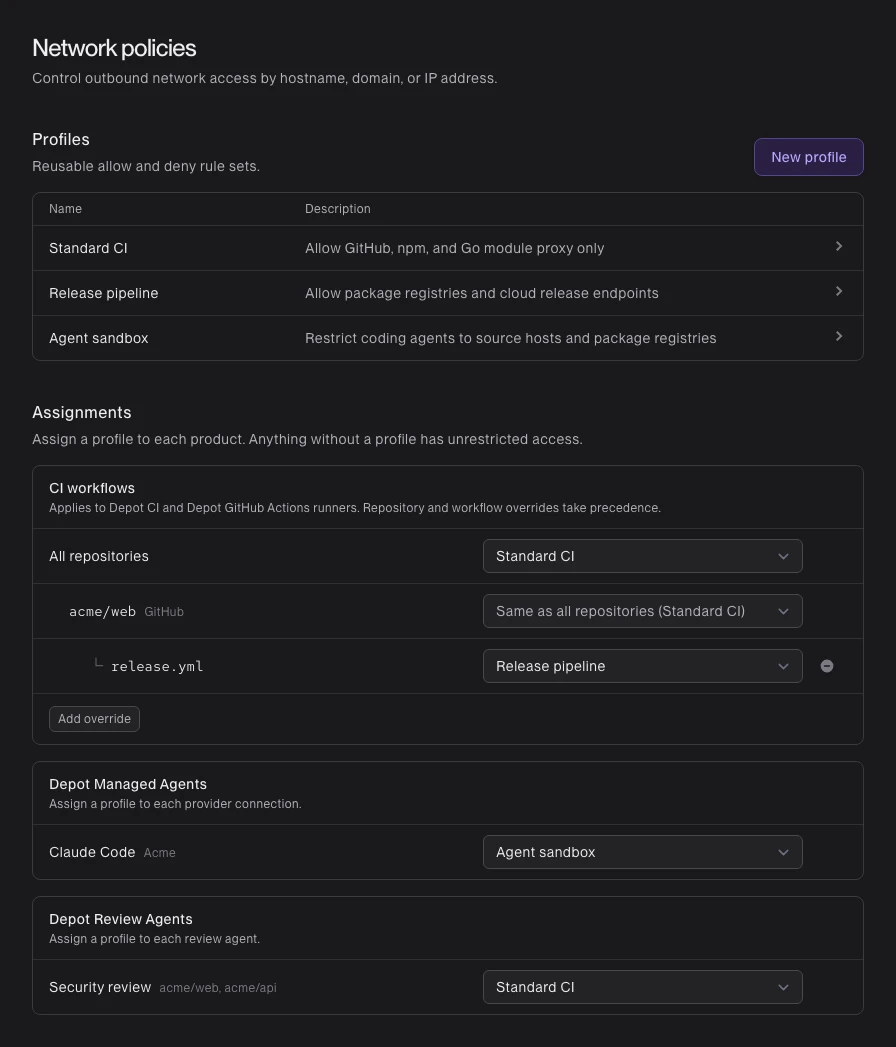
Create a network profile
A network profile is a named set of outbound allow and deny rules paired with a default action.
Before you start, confirm that you have the Owner role in your Depot organization.
- Open Settings > Network policies in the Depot dashboard.
- Click Create profile if your organization has no profiles yet, or click New profile to add another profile.
- Enter a unique Name and an optional Description. Both fields accept up to 191 characters.
- Under When no rule matches, select Deny or Allow as the default action.
- Under Rules, click Add rule, choose Allow or Deny, enter a destination, and add an optional note. Repeat for each rule, or click Bulk add to paste multiple destinations at once.
- Click Create profile to save the profile as revision 1.
Creating a profile doesn't enforce it automatically. Assign the profile under Assignments to apply its rules to new jobs and agent runs.
Configure rules and evaluation
Supported destination formats
Each profile supports up to 500 rules. Depot detects the destination type automatically from the value you enter:
| Target type | Example | What it matches |
|---|---|---|
| Exact host | registry.npmjs.org | The exact DNS hostname. |
| Domain and subdomains | *.github.com | Both the apex domain (github.com) and all subdomains (api.github.com). |
| IP address | 169.254.169.254, 2001:db8::1 | A single IPv4 or IPv6 address. |
| CIDR range | 10.0.0.0/8, 2001:db8::/32 | Every IPv4 or IPv6 address inside the range. |
Follow these format rules when entering destinations:
- Enter hostnames without schemes (
https://), ports (:443), or paths (/path). - Place wildcards at the start as
*.followed by a valid domain, such as*.example.com. Mid-host wildcards such asapi.*.example.comare rejected. - Don't enter
*to match all traffic. Set When no rule matches to Allow or Deny instead. - Single-label hostnames such as
localhostaren't accepted. - Optional rule notes accept up to 191 characters.
Add multiple rules at once
To add several destinations with the same action:
- In the profile editor, click Bulk add.
- Paste hostnames, domains, IP addresses, or CIDR ranges separated by newlines, spaces, or commas.
- Select Allow or Deny.
- Click Add N rules (matching the number of destinations you pasted) to append them to the draft.
How Depot evaluates rules
Depot evaluates outbound connections using these precedence rules:
- Depot-managed hosts: Depot always allows required Depot-managed hosts regardless of your profile rules or default action so workloads can communicate with Depot services.
- Deny rules: When both an Allow rule and a Deny rule match a destination, Deny takes precedence. Rule order doesn't change precedence.
- Allow rules: Explicitly allowed destinations are permitted unless a Deny rule also matches.
- Default action: When no rule matches, Depot applies the profile's When no rule matches setting (Deny or Allow).
The profile editor warns you inline when a rule is a duplicate, overridden by a Deny rule, redundant with the default action, or attempts to block a Depot-managed host.
Assign profiles to workloads
Open Settings > Network policies and choose a profile for each workload under Assignments. Leaving a row set to No profile (unrestricted) allows all outbound traffic for that scope.
CI workflows
Assignments under CI workflows apply to both Depot CI jobs and Depot GitHub Actions runners. You can set an organization default and override it by repository or by workflow:
- All repositories: sets the default profile for every CI workflow in your organization.
- Repository override: click Add override, choose a connected repository, leave Workflow blank, select a Profile, and click Add override.
- Workflow override: click Add override, choose a connected repository, enter the workflow filename (for example,
release.yml), select a Profile, and click Add override.
Overrides follow a strict hierarchy: a workflow override takes precedence over a repository override, and a repository override takes precedence over All repositories. To stop overriding a repository or workflow, remove the override or choose the inherited option to fall back to the parent scope.
Depot Managed Agents
When Depot Managed Agents is enabled for your organization, each provider connection appears under Depot Managed Agents. Select a profile for each provider connection you want to restrict.
Depot Review Agents
When Depot Review Agents is enabled for your organization, each review agent appears under Depot Review Agents. Select a profile for each review agent you want to restrict.
Manage profile revisions
Every network profile keeps an immutable, numbered revision history starting at Revision 1.
- Saving changes to When no rule matches or Rules publishes a new revision (for example, Save revision 2).
- Saving changes to only Name or Description updates the profile without creating a new revision.
- New revisions apply to jobs and agent runs started after you save. Workloads already running keep the revision they started with.
View and restore an earlier revision
- Open the profile from Settings > Network policies.
- Select History to view all revisions, including when each revision was saved and who saved it.
- Click Restore on an earlier revision to load its rules into the editor as a draft.
- Review the rules and click Save revision N to publish them as the next revision.
Delete a profile
You must unassign a profile from every product, repository, workflow, provider connection, and review agent before deleting it. Open the profile and click Delete profile.
Deleted profiles no longer apply to new workloads, but past runs retain the profile's name and revision number in their network logs for auditability.
Inspect network activity and policy decisions
Depot records DNS lookups and outbound connections alongside the policy decision for each destination.
Inspect a single job or agent run
Open Network on a Depot CI job, Depot GitHub Actions runner job, Depot Managed Agents run, or Depot Review Agents attempt to review its recorded traffic:
- DNS queries: domain names looked up by the workload, query counts, policy decisions, and first-seen and last-seen timestamps.
- Connections: destination IP addresses and ports with associated resolved hostnames, connection counts, policy decisions, and timestamps.
- Filters: search by domain, IP address, or hostname, and filter by decision (All, Allowed, or Denied).
- Applied profile: shows the Network profile that applied to the run, or None if unrestricted. Organization owners can follow the profile name to the exact revision active when the run started. Depot notes when the profile's rules changed after the run or when the profile was deleted.
Inspect organization-wide network logs
Open Network Logs under Organization in the Depot dashboard sidebar to audit outbound traffic across your entire organization:
- Select a UTC date range of up to 31 days.
- Filter by domain or address, destination type (All, DNS queries, or Connections), and policy decision (All, Allowed, or Denied).
- Select any destination to view Sources: every workload that contacted that destination, grouped by product (Depot CI, GitHub Actions, Managed Agents, Review Agents, or Sandboxes) and UTC day, with allowed and denied counts and links to the originating job, run, or review.
When rolling out a restrictive policy, inspect Network Logs for your existing workloads first to collect the hostnames and IP ranges they require, then add those destinations as Allow rules in a default-deny profile.