Run Devin in Depot sandboxes
Run Devin Outpost sessions in Depot sandboxes through Devin's web interface. Depot starts and manages the runner for you. View run status, timing, and failure details in your Depot dashboard.
How it works
Devin is Cognition's AI software engineering agent for writing, running, and testing code.
An Outpost is a queue of Devin sessions waiting for compute. You connect an Outpost to Depot and select it when starting a session in Devin.
Depot checks the queue, claims a session, and starts the Devin runner in a sandbox. You continue the conversation in Devin while the runner executes tools in the sandbox. You don't need to install or start a worker yourself.
Get started
Prerequisites
Before you start, you need:
- A Depot account with the Owner role in your Depot organization.
- A Devin account with Outposts enabled.
- A Devin administrator who can manage enterprise settings and service users.
Create a Blueprints key (optional)
A Blueprints key lets Depot prepare repositories and refresh cached Blueprint setup. Connect with Devin doesn't create this key. If Depot shows the optional Blueprints key field, create a separate key using the steps below.
- In the Devin organization that owns your Blueprints, open Settings > Devin API > Service users.
- Select Provision service user.
- Enter a Display name, such as
Depot Blueprints. - Select an Organization role with
org.blueprints.manage,ViewOrgSessions, andUseDevinSessionspermissions. - Choose an Expiration and provision the service user.
- Copy the API key and save it for Depot's Blueprints key field.
Devin shows the API key only once. The key must belong to an organization service user, not an account-level service user.
Connect Devin to Depot
- Open Settings > Connections > Agent providers in Depot and select Devin.
- If the optional Blueprints key field is available, enter your key, then click Connect with Devin.
- Sign in to Devin if prompted.
- Confirm the Outpost name and keep Linux as the platform.
- Click Connect in Devin.
Devin creates an Outpost and a service user for Depot. When setup completes, Depot shows Connected to Devin and the Outpost ID. You don't need to copy the Outpost ID or service user token.
Depot keeps the service user token outside the sandbox. The runner receives a credential for the session Depot claims.
Choose a sandbox size
After connecting, select a Sandbox size for the connection and click Save. The default is 4x16 (4 CPUs, 16 GB memory). See sandbox sizes for available sizes, billing, and when changes take effect.
Start a Devin session
- Start a new session in Devin.
- Under Configuration > Virtual environment, select the Outpost you connected.
- Send a task, such as “Create a hello.txt file containing Hello from Depot.”
Depot claims the session and starts its sandbox. Devin's response appears in the same conversation.
Verify your run in Depot
Open Agent runs in your Depot dashboard and select Devin to see your runs, newest first.
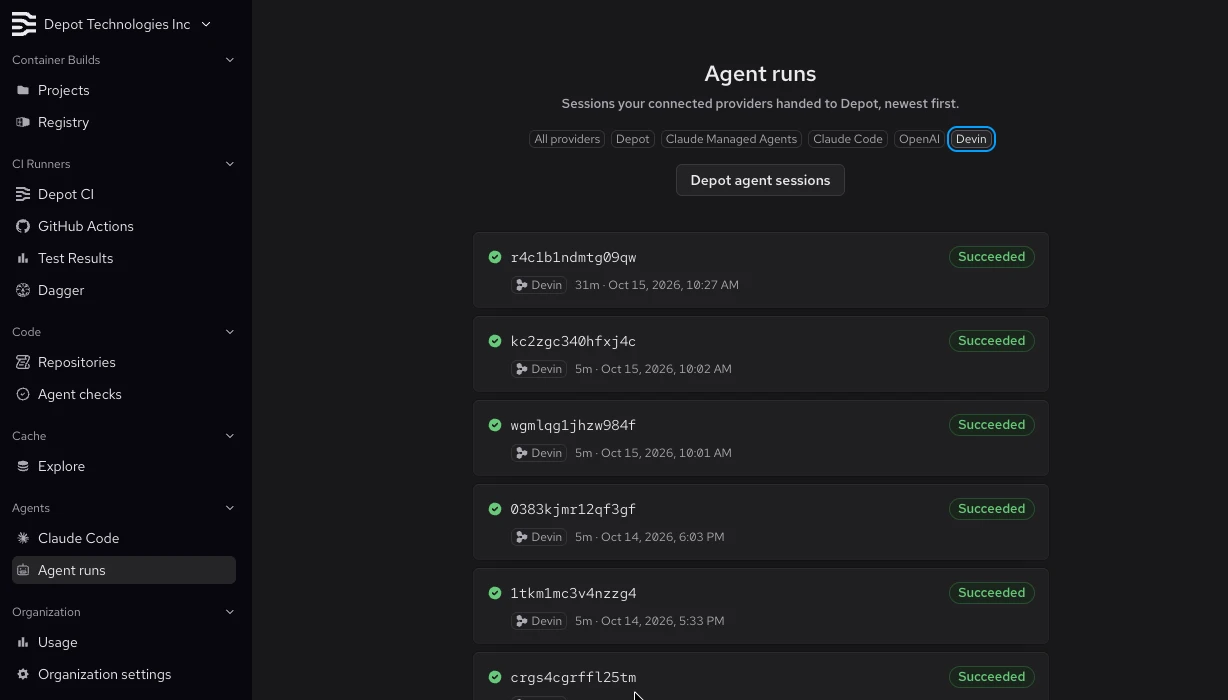
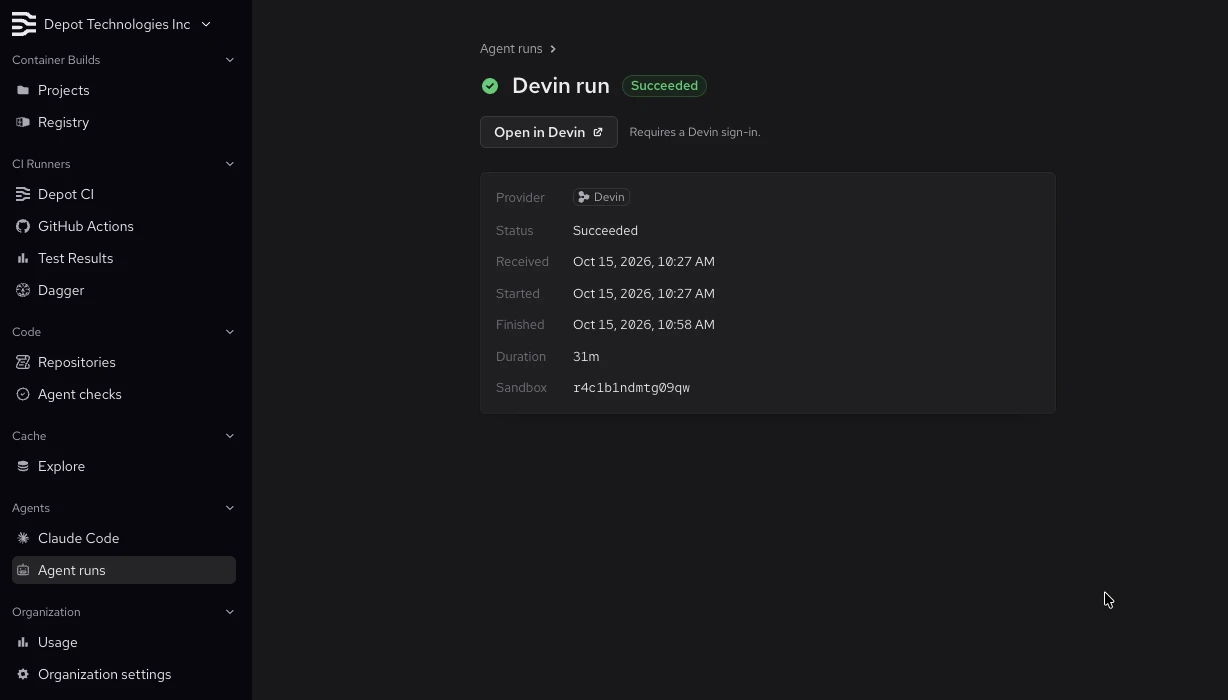
Select a run to see its status, timing, duration, and sandbox ID. Use Open in Devin to return to the conversation when the link is available.
If a run fails, check Why it failed for details.
What's next
Give Devin a repository task, such as fixing a bug, adding tests, or updating a dependency, and select your connected Outpost. You can close your laptop while Devin works on Depot, then return to the conversation to review progress and give follow-up instructions.
Continue working by sending another message in the same Devin conversation. If the session needs a new sandbox, Depot restores the latest available workspace snapshot. See Session continuity for details and limitations.