Run OpenAI agents in Depot sandboxes
Run OpenAI agents for your application or automated workflow with tool execution in Depot sandboxes. OpenAI manages the agent loop, and Depot runs your agent's commands and file operations. View run status, timing, and failure details in your Depot dashboard.
How it works
The OpenAI Agents API manages agent sessions. A self-hosted environment lets you run commands and work with files on compute you choose.
You create a self-hosted session and send a task through the API. Depot polls for sessions requesting an environment connection, creates a sandbox, and starts the Codex executor, codex exec-server.
OpenAI runs the agent loop. The executor connects outbound to OpenAI over WebSocket, executes commands and file operations, and returns results.
Depot installs and starts the executor for you. See OpenAI's self-hosted sandboxes guide for the connection architecture.
Get started
Prerequisites
Before you start, you need:
- A Depot account with the Owner role in your Depot organization.
- An OpenAI project with Agents API access.
- A Control key: Create an OpenAI API key with
api.agents.read,api.agents.write, andapi.responses.writepermissions. - An Environment key: In Agents > Environments > Keys, create a Self-hosted environment key.
Both keys and your sessions must belong to the same OpenAI organization, project, and user or service account. Follow OpenAI's authentication guidance.
Connect OpenAI to Depot
- Open Settings > Connections > Agent providers in Depot and select OpenAI.
- Enter your control key in Control key.
- Enter your environment key in Environment key.
- Click Connect.
Depot shows Connected to OpenAI when the connection succeeds. Depot keeps the control key outside the sandbox. The executor receives the environment key, which only permits environment connections.
Choose a sandbox size
After connecting, select a Sandbox size for the connection and click Save. The default is 4x16 (4 CPUs, 16 GB memory). See sandbox sizes for available sizes, billing, and when changes take effect.
Start a session
- Follow OpenAI's create a self-hosted session example. Use the same project and user or service account as your control key, with
type: "self_hosted"andworkspace_directory: "/workspace"in the session's environment. - Send a task, such as "Create a hello.txt file containing Hello from Depot."
Depot starts the sandbox when the session requests an environment connection. Skip the executor installation and startup steps in OpenAI's guide. Read or stream the agent's response through the sessions API.
Verify your run in Depot
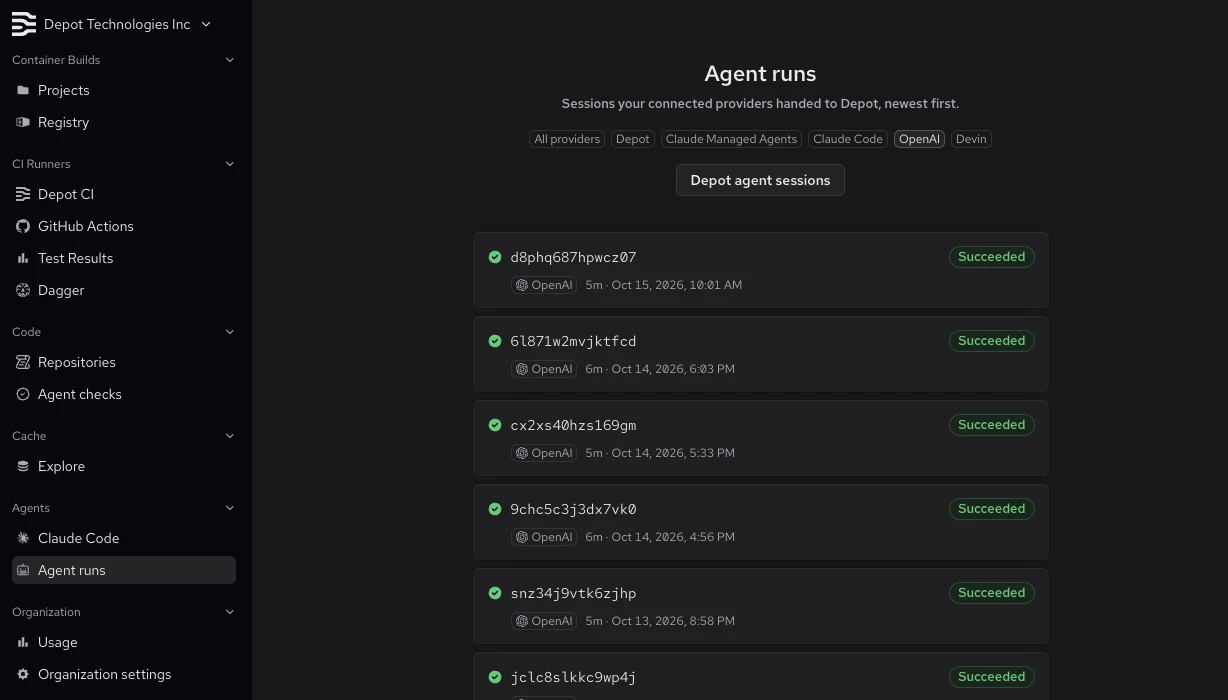
Open Agent runs in your Depot dashboard and select OpenAI to see your runs, newest first.
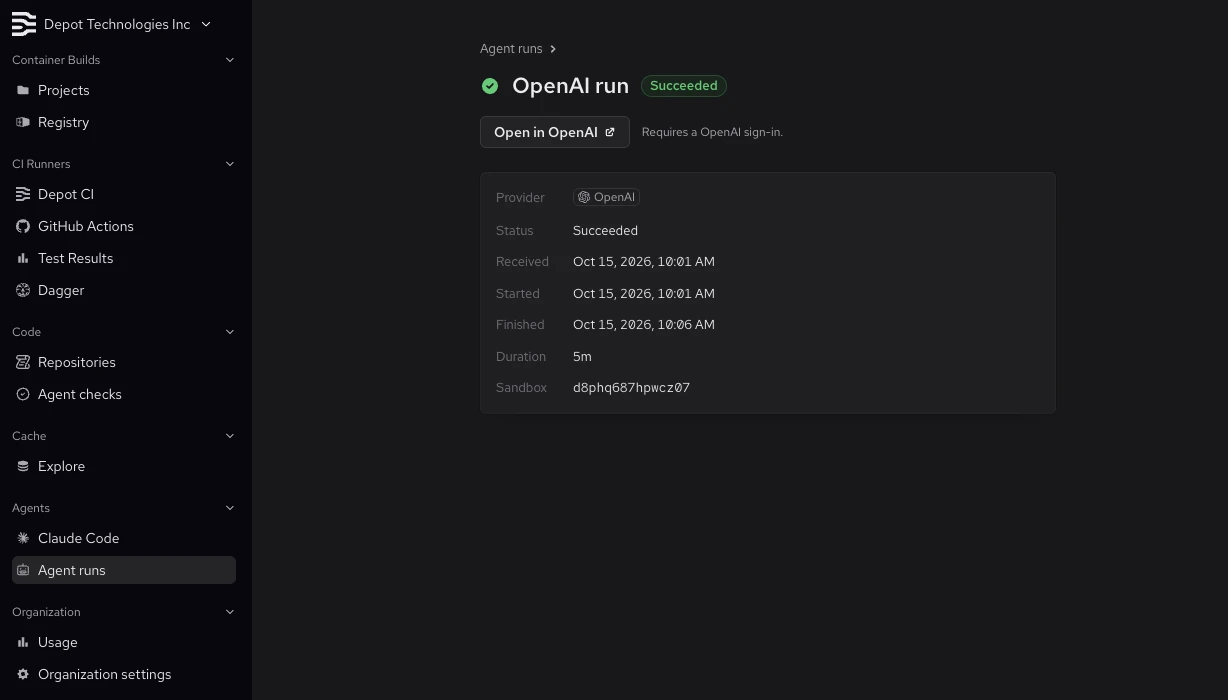
Select a run to see its status, timing, duration, and sandbox ID. Use Open in OpenAI to view the session when the link is available.
If a run fails, check Why it failed for details.
What's next
Give your agent access to a repository and its dependencies, then use it to investigate a failing test and propose a fix. Your application starts the session and supplies the task; Depot runs the commands and file operations.
Continue working by sending another message to the same OpenAI session. If the session needs a new sandbox, Depot restores the latest available workspace snapshot. See Session continuity for details and limitations.