Run Claude Code in Depot sandboxes
Run Claude Code cloud sessions in Depot sandboxes through Claude's web, desktop, or mobile interface. Depot starts and manages the runner for you. View run status, timing, and failure details in your Depot dashboard.
How it works
A Claude Code self-hosted environment routes cloud sessions to runners on compute you choose.
Anthropic provides the Claude models and manages your conversation and session queue.
Depot creates a sandbox and starts a Claude Code runner inside it. The runner starts your session, where Claude Code runs the agent loop and tools. Claude Code connects to Anthropic for model responses and session updates.
What's the difference between Claude Code and Claude Managed Agents on Depot?
- Claude Code: Use Claude's web, desktop, or mobile interface for coding tasks. Depot runs the agent loop and tools.
- Claude Managed Agents: Build agents for applications or automated workflows. Anthropic runs the agent loop and Depot executes commands and file operations. Follow the Claude Managed Agents guide.
Get started
Prerequisites
Before you start, you need:
- A Depot account with the Owner role in your Depot organization.
- A Claude Team or Enterprise plan with self-hosted environments enabled.
- An environment key from a Claude Code self-hosted environment. Create the environment and copy its key in Cloud environments settings.
Connect Claude Code to Depot
- Open Settings > Connections > Agent providers in Depot and select Claude Code.
- Paste your Claude Code environment key into Environment secret.
- Click Connect.
Depot shows Connected to Claude Code and the Environment pool ID when the connection succeeds.
Depot keeps your environment key outside the sandbox. The sandbox receives a single-use credential to register its runner.
Choose a sandbox size
After connecting, select a Sandbox size for the connection and click Save. The default is 4x16 (4 CPUs, 16 GB memory). See sandbox sizes for available sizes, billing, and when changes take effect.
Authorize GitHub access
Each person who wants to start sessions must connect their own GitHub account to Claude.
Before you connect your account, an organization Owner must enable the GitHub connector for your Claude organization.
- Open GitHub Integration in Claude.
- Connect your own GitHub account if it isn't already connected. Use an account that has access to the repository you want to work on.
- Follow GitHub's prompts to authorize the connection.
Start a Claude Code session
- Open Claude Code on the web or the Code section in the Claude desktop or mobile app.
- Click the environment name (the first control below the message box) to open the environment selector.
- Find the environment you connected to Depot under Self-hosted environments and select it.
- Click Repo and choose the repository you want to work on.
Now you can send Claude a task for the selected repository. For example: "Read this repository and explain how to run its tests." Claude's response appears in the same conversation.
Verify your run in Depot
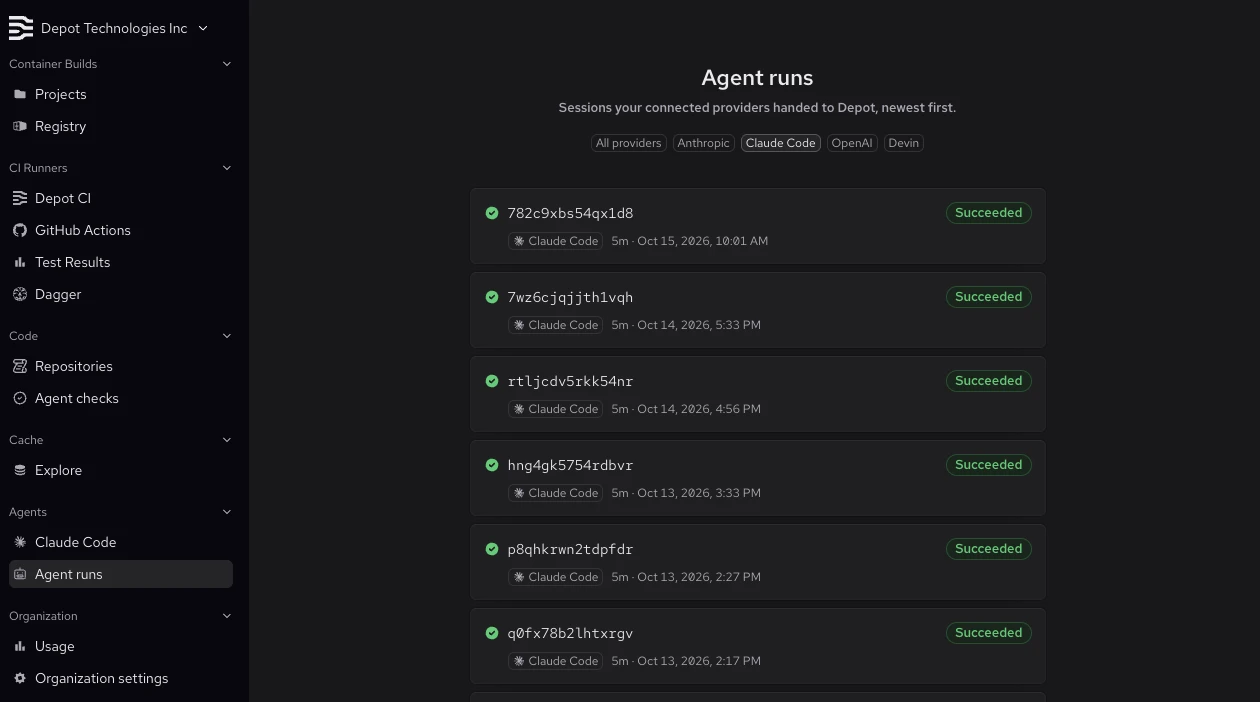
Open Agent runs in your Depot dashboard and select Claude Code to see your runs, newest first.
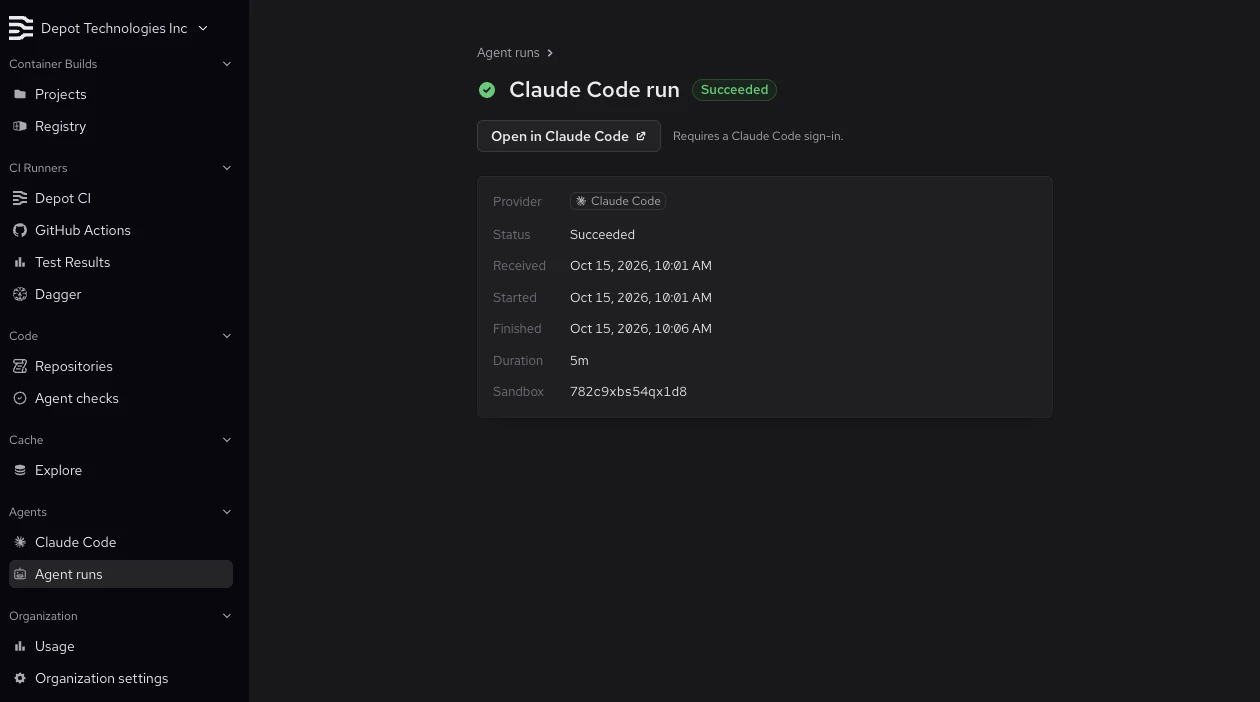
Select a run to see its status, timing, duration, and sandbox ID. Use Open in Claude Code to return to the conversation when the link is available.
If a run fails, check Why it failed for details.
What's next
With the connection working, give Claude Code a larger repository task: implement a feature, investigate failing tests, or prepare a refactor. The work runs on Depot without using your laptop's CPU or memory, and you can return to the conversation with follow-up instructions.
Continue working by sending another message in the same Claude Code conversation. If the session needs a new sandbox, Depot restores the latest available workspace snapshot. See Session continuity for details and limitations.