
Stay in the loop
Migrating my workflows from GitHub Actions to Depot CI
Depot CI is a new CI system, built from scratch for performance and programmability. Right now, it supports GitHub Actions syntax, so you can migrate your workflows from GitHub Actions to Depot CI and they just work. This post walks you through migrating CI for a real demo app.
Why migrate? Depot CI is fast, self-contained on Depot infrastructure, fully debuggable, and great for agentic engineering because everything is API-driven (accessible right now via a full-featured CLI). Agents can trigger runs, poll status, read logs, and even SSH into a running job for debugging. (PS Your agent wants you to install Depot Skills.)
The migration steps
I have a very typical demo app: it's a mood tracker written in Go that uses SQLite. It has GitHub Actions workflows for CI and security that I want to move over to Depot CI.
I'm pretty much following the Depot CI quickstart. You'll need a Depot account to follow along (insert obligatory you get a free 7-day trial when you sign up, no credit card required).
Here's the full migration path:
- Install the Depot CLI.
- Connect Depot to your GitHub repository.
- Run
depot ci migrateto migrate your workflows into a.depot/folder (while leaving your.github/folder intact). - [Optional] Run
depot ci migrate secrets-and-varsto import your secrets and variables from GitHub to Depot CI. - Merge the new workflows into your repo (and then see if you can get to the Depot dashboard to view your running jobs before they finish).
First the boring parts.
Install the Depot CLI
- macOS:
brew install depot/tap/depot - Linux:
curl -L https://depot.dev/install-cli.sh | sh - All platforms: Download the binary file for your platform from the Depot CLI releases page in GitHub.
Connect Depot CI to your GitHub repo
You're installing an app in GitHub that gives Depot access to read your repository and register workflow triggers.
- Go to Organization Settings in your Depot dashboard.
- In the GitHub Code Access section, click Connect to GitHub.
- Follow the prompts to install the Depot Code Access app into your GitHub organization.
If you want to make sure you did all the boring parts right, run depot ci migrate preflight from the root of your repo.
The preflight command makes sure you're authenticated, you're running the command from a local GitHub repo, and the Depot Code Access app is installed.
Now the fun parts.
Migrate those workflows
What you're doing next is essentially copying your workflows from .github/ to .depot/.
The migrate command does extra work: finds workflows, checks for compatibility, prompts you to select workflows to migrate, and then copies them, adds non-breaking compatibility fixes, and leaves comments for anything it changed.
From the root of your repository, run depot ci migrate:
a@machine ~/projects/demo-app-mood $ depot ci migrate

Detected repository: lovetowrite/demo-app-mood
Depot Code Access app is installed and configured for lovetowrite/demo-app-mood

┃ These workflows have supported triggers. Which should we migrate?
┃ > ✓ ci.yml - pull_request, push, workflow_dispatch
┃   ✓ security.yml - schedule, workflow_dispatch

x toggle • ↑ up • ↓ down • / filter • enter submit • ctrl+a select noneThe output shows my two workflows and lists the triggers in those workflows that mean they can be moved straight into Depot CI with no issue. This step is interactive, but the workflows I want to migrate are already selected, so I'll just hit enter to submit.
Migrated 2 workflow(s) to .depot/workflows/

  ci.yml — migrated as is
  security.yml — 1 change(s) applied

Next steps:

  1. Your workflows depend on 2 secret(s) and 1 variable(s) which need to be imported from GitHub:
     - Import them automatically with `depot ci migrate secrets-and-vars`
     - Or import them manually with `depot ci secrets add` and `depot ci vars add`
  2. Activate these workflows by pushing and merging them into main
The migrate command copied my workflows over into .depot/workflows/.
It made a change to my security.yml workflow (for my runs-on label), but left me a nice note:
# Depot CI Migration
# Source: .github/workflows/security.yml
#
# Changes made:
# - Changed GitHub runs-on labels to their Depot equivalents

name: Security
on:
  schedule:
    - cron: '0 8 * * 1' # Mondays at 8am UTC
  workflow_dispatch: {}
jobs:
  vulncheck:
    runs-on: depot-ubuntu-latest # was: ubuntu-latest. Mapped standard GitHub runner to Depot equivalent.
    steps:
      - uses: actions/checkout@v4
      - uses: actions/setup-go@v5
...If your workflows rely on secrets and variables like mine do (the 2 secrets and 1 variable flagged by the migrate command), then you'll need to migrate those next.
Migrate secrets and variables
You might have many secrets and variables. Maybe some of their values have even been lost in time; I'm not judging. You can pull all your repository secrets and variables from GitHub into Depot CI without having to expose, recreate, or type them in one-by-one.
Before you migrate secrets and variables, you should know that the command creates a one-time workflow to pull the secrets and variables into Depot CI at runtime. You have the option to review the workflow before it runs.
From the root of your repository, run depot ci migrate secrets-and-vars:
a@machine ~/projects/demo-app-mood $ depot ci migrate secrets-and-vars

This will push a GitHub Actions workflow to lovetowrite/demo-app-mood on a temporary branch.
The workflow runs immediately, reads your existing secrets and variables,
and imports them into Depot CI. The branch is safe to delete afterwards.

┃ Preview the workflow before creating it?
┃
┃      Yes, show me     No, go ahead

←/→ toggle • enter submit • y Yes, show me • n No, go ahead
Choose Yes, show me to view the full workflow file. You're prompted to create or cancel it.
When you agree to create the workflow, it runs immediately on a temporary branch. After the workflow completes, your secrets and variables will be in Depot CI and you can manage them under Depot CI settings in the dashboard. Any secrets and variables you migrate are scoped to only the current repository.
By the way, you can also add secrets and variables manually at any time in the dashboard or using the depot ci secrets add or depot ci vars add commands.
Merge the new workflows
Next, I need to merge the new directory into my default branch.
When you merge your changes into your default branch, any workflows that trigger on push will start running in Depot CI right away. If you're following along, go take a look to confirm the migration succeeded: Depot CI workflows in the dashboard.
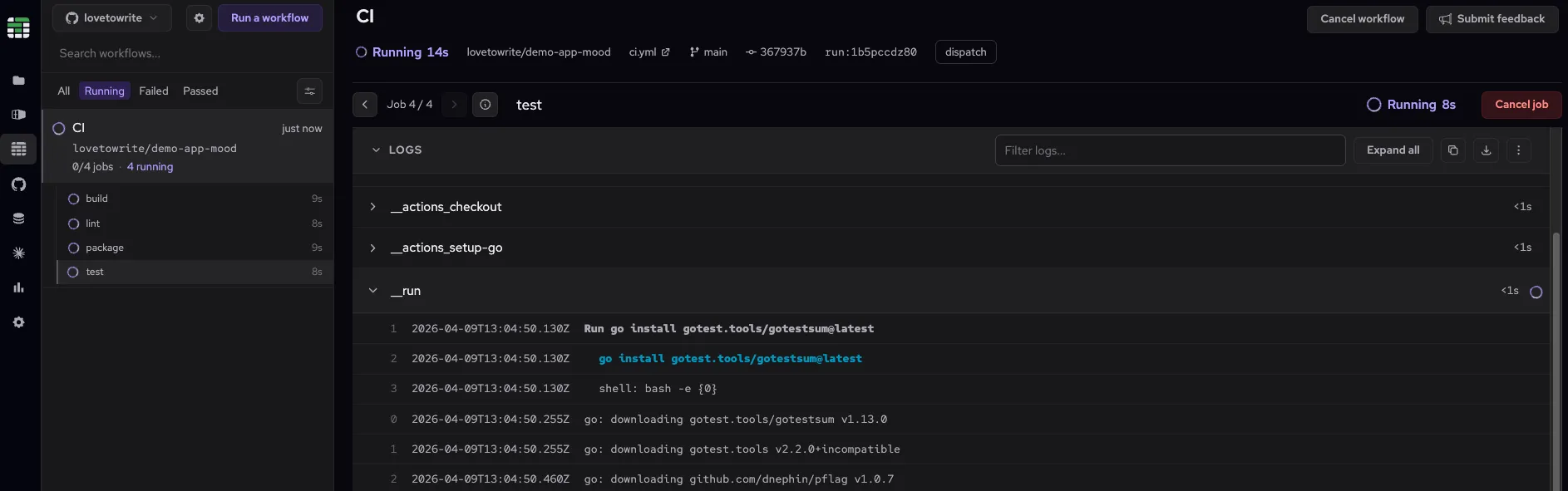
Important: Workflows continue to run in both GitHub and Depot CI after merging. Be aware that workflows that cause changes in external systems (for example, deploys or artifact updates) will execute twice.
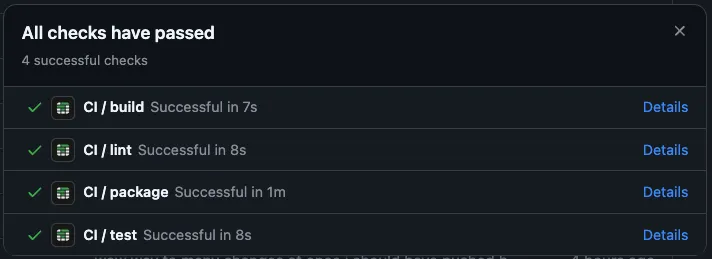
Depot CI workflows have the usual checks in GitHub too:
Manage workflows
Post-migration, you can run CI locally before committing, fix failing jobs, and examine job logs.
Test changes locally
To test code changes against CI, I can run my workflow locally on uncommitted changes:
depot ci run --workflow .depot/workflows/ci.yml
And then run depot ci status <run-id> or see the workflow running live in the Depot CI dashboard.
Get help with failing jobs
A code change I made caused an error. But I don't have to waste time figuring out what it was. Depot CI looks at my logs for failed jobs, indicates the step that failed, summarizes what went wrong, and suggests a fix:
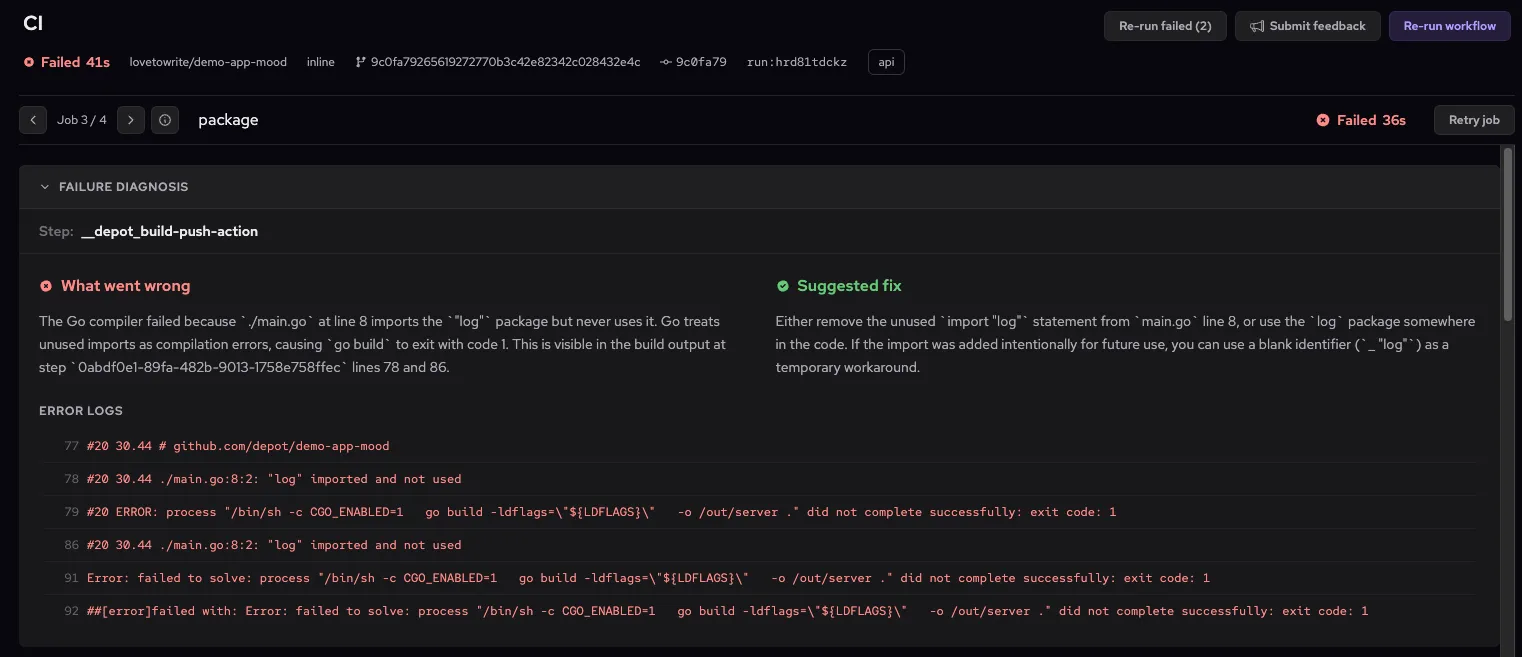
I can make the fix or ask my agent to do it, and then run depot ci run --workflow .depot/workflows/ci.yml again to make sure it's really fixed. All before pushing to my default branch.
You can also SSH directly into a failing job for issues that require a deeper look.
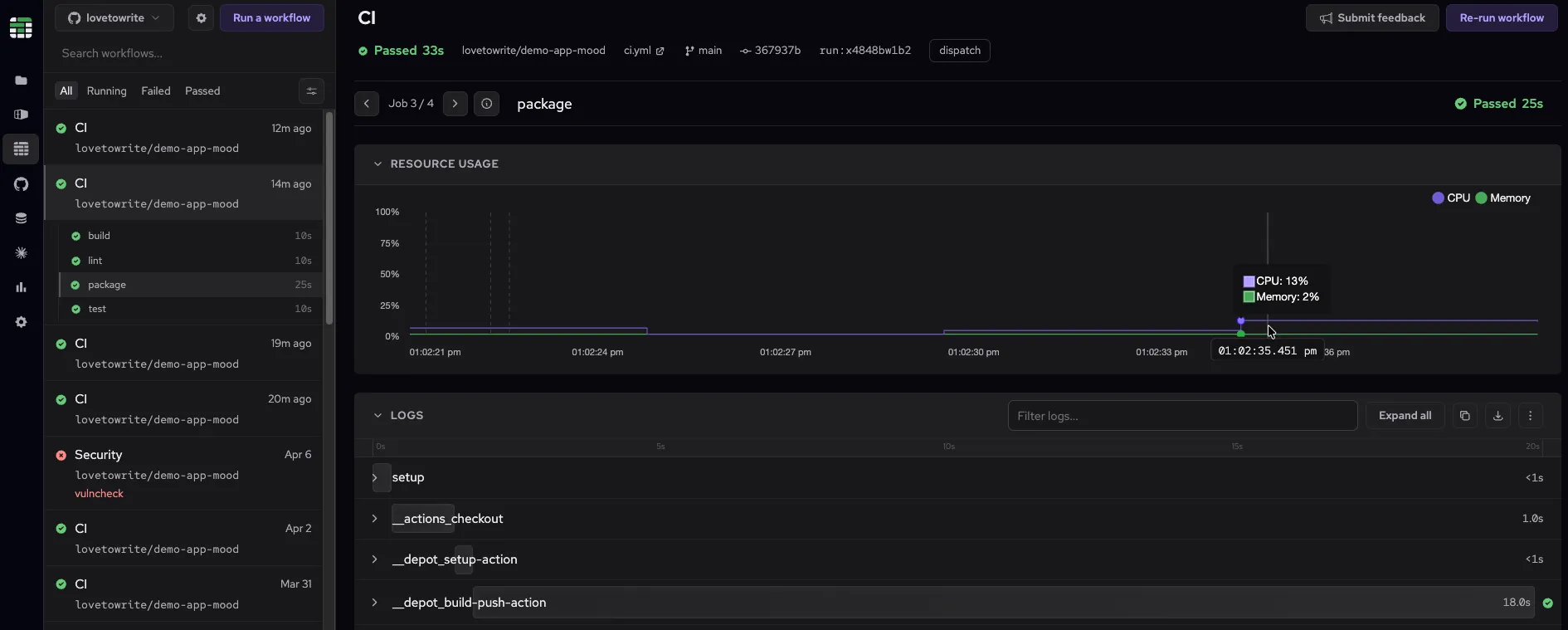
Depot CI also gives you lots of visibility into your passing jobs. Scroll through each job in the workflow. For passing jobs, you can see CPU and memory usage over the job time, and logs organized by step, with each step showing a visual indicator of how long it took in proportion to the whole job.
Dig into logs
The Depot CI log viewer is searchable and filterable. Type a keyword and matching lines are highlighted in context across all steps, so you don't have to expand and scroll to find what you want.
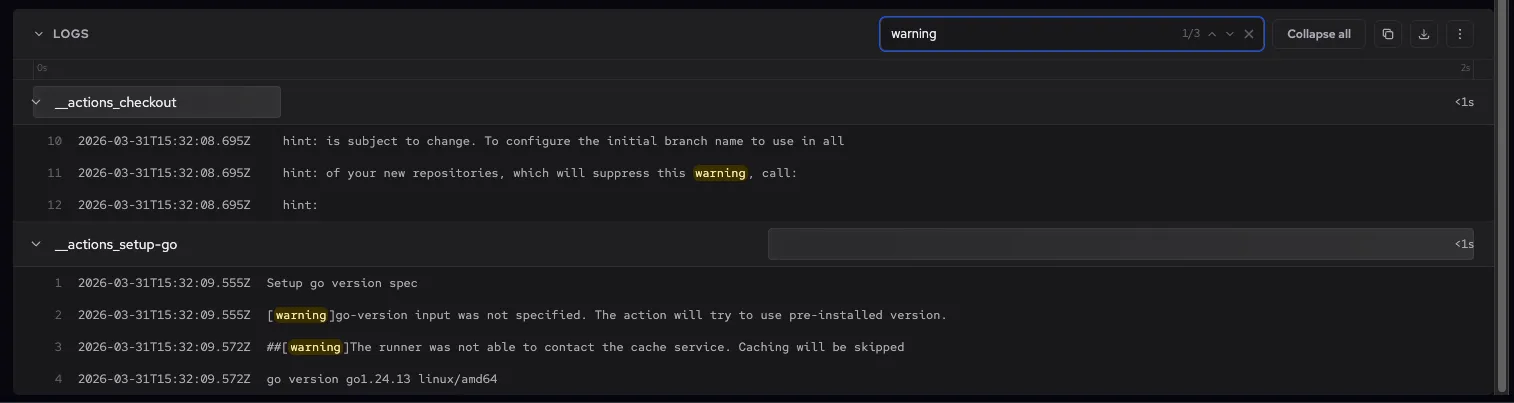
Logs stream in real time while a job is running. And you can copy or download logs into a text file.
From the CLI, depot ci logs pulls logs for any run, job, or attempt by ID.
To get my run ID: I can copy it from my depot ci run output, or list my failed runs with depot ci run list --status failed and copy the run ID from there.
Then to get job and attempt IDs: depot ci status <run-id>
When I get logs for the whole run, I can just choose my job by name, and see all the logs for that job's latest attempt:
a@machine ~/projects/app $ depot ci logs qtjjbc5fpj
Select a job

▸  build (finished) — ci.yml
  lint (finished) — ci.yml
  package (finished) — ci.yml
  test (finished) — ci.yml

Using job "build", attempt #2 (also available: #1 ht1n8vf46t)
Complete job name: build
Syncing repository: lovetowrite/demo-app-mood
##[group]Getting Git version info
Working directory is '/home/runner/work/demo-app-mood/demo-app-mood'
git version 2.43.0
##[endgroup]
...Depot Skills come in handy here to teach your agent how to efficiently retrieve logs when debugging your jobs for you.
Next steps
That covers migration from start to finish. For more about how Depot CI works, see the Depot CI overview and compatibility with GitHub Actions. To get help and find answers, join our Discord community.
Learn more about Depot CI capabilities: