# Manage your Depot account and organizations (https://depot.dev/docs/account)
Your Depot account is your login and identity on the Depot platform. Your account can be an owner or member of multiple Depot organizations.
The [Depot dashboard](/orgs/) is where you manage your account and organizations in Depot.
## Account settings
You can access your user account settings in the Depot dashboard. Click the organization name at the top of the page and select **User settings**.
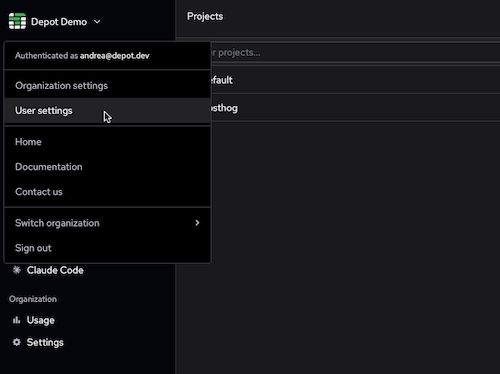 From the user [Settings](/settings) page you can do the following:
* Sign out of your Depot account
* Update your profile name
* Create [user access tokens](/docs/cli/authentication#user-access-tokens) to authenticate for local development
* Add public SSH keys for authentication
You can't change the email address for your Depot account. To delete an account, send a request to [help@depot.dev](mailto:help@depot.dev).
## Organizations
Every action you take in Depot is within the context of an organization. An organization typically represents a single company or team. Depot bills at the organization level, consolidating all usage across products into a single invoice.
You can view all of your builds, runners, usage, and billing per organization in your Depot dashboard. Configure organization-level settings in the organization [Settings](/orgs/_/settings) page.
### Create an organization
When you sign up for Depot, we either prompt you to create an organization, or you automatically join the organization you were invited to.
To create a new organization or request to join an organization:
1. Log in to your [Depot dashboard](/orgs).
2. Click the organization name at the top of the page.
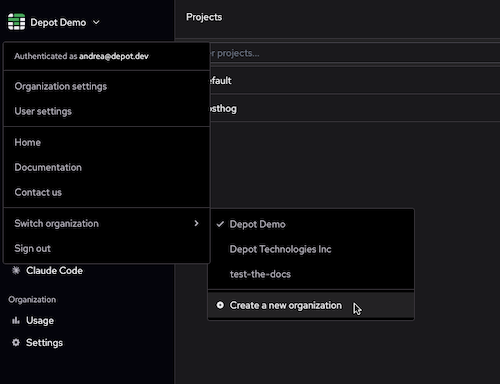
3. Go to **Switch organization** and select **Create a new organization**.
From the user [Settings](/settings) page you can do the following:
* Sign out of your Depot account
* Update your profile name
* Create [user access tokens](/docs/cli/authentication#user-access-tokens) to authenticate for local development
* Add public SSH keys for authentication
You can't change the email address for your Depot account. To delete an account, send a request to [help@depot.dev](mailto:help@depot.dev).
## Organizations
Every action you take in Depot is within the context of an organization. An organization typically represents a single company or team. Depot bills at the organization level, consolidating all usage across products into a single invoice.
You can view all of your builds, runners, usage, and billing per organization in your Depot dashboard. Configure organization-level settings in the organization [Settings](/orgs/_/settings) page.
### Create an organization
When you sign up for Depot, we either prompt you to create an organization, or you automatically join the organization you were invited to.
To create a new organization or request to join an organization:
1. Log in to your [Depot dashboard](/orgs).
2. Click the organization name at the top of the page.
3. Go to **Switch organization** and select **Create a new organization**.
 ### Switch organizations in the Depot dashboard
1. Log in to your [Depot dashboard](/orgs).
2. Click the organization name at the top of the page.
3. Go to **Switch organization** and select another organization from the list.
### Organization access roles
Organizations have role-based access. When you create an organization, you have the owner role and permissions.
| Role | Permissions |
| ------ | --------------------------------------------------------------------------------------------------------------------------------------------------------------------------------------------------------------------------------------------- |
| Owner | Manage all organization settings, such as billing, payments, SSO (if purchased), tokens, and GitHub connections. Manage members, including invitations, roles, and removal. Manage projects, builds, and runners. Access usage and analytics. |
| Member | Manage projects, builds, runners. Access usage and analytics. |
### Invite and manage organization members
If you have a Startup or Business plan, you can invite users to join an organization.
1. Log in to your [Depot dashboard](/orgs).
2. Under **Organization**, click [Settings](/orgs/_/settings).
3. From the **Members** section of the **Settings** page you can:
* View members and change their role.
* View or remove pending invites.
* Invite new members using either their existing Depot account email or the email they'll use to sign up for Depot.
When you invite someone to join your organization, they receive an invitation email with an **Accept invite** link. If the user doesn't have a Depot account, or isn't signed in, the **Accept invite** link redirects them to sign in or sign up. After the user authenticates, they become an organization member and can access the organization in the Depot dashboard.
### Manage organization members with SSO
Single sign-on (SSO) with SCIM provisioning for Depot is an add-on feature. To learn more, get in touch at [contact@depot.dev](mailto:contact@depot.dev).
With SSO enabled, you configure your identity provider once through the Depot dashboard. Your identity provider handles Depot sign-ins and organization members.
### Delete an organization
To delete an organization, send a request to [help@depot.dev](mailto:help@depot.dev). Include the name of the organization you want to delete. We'll process the deletion manually to ensure all associated projects and runners are properly removed.
## Billing
Each Depot organization has its own [plan](/pricing) and billing. To view an organization's billing, payment, and plan details, go to the organization [Settings](/orgs/_/settings) page in your Depot dashboard.
You can access invoices from Stripe that contain VAT information through the Billing Portal in your organization [Settings](/orgs/_/settings).
For billing issues, see the [troubleshooting page](/docs/troubleshooting#billing).
## For AI Agents
The full site index is at [llms.txt](https://depot.dev/llms.txt). Append `.md` to any documentation, blog, changelog, or customer URL to fetch its markdown source directly.
### Switch organizations in the Depot dashboard
1. Log in to your [Depot dashboard](/orgs).
2. Click the organization name at the top of the page.
3. Go to **Switch organization** and select another organization from the list.
### Organization access roles
Organizations have role-based access. When you create an organization, you have the owner role and permissions.
| Role | Permissions |
| ------ | --------------------------------------------------------------------------------------------------------------------------------------------------------------------------------------------------------------------------------------------- |
| Owner | Manage all organization settings, such as billing, payments, SSO (if purchased), tokens, and GitHub connections. Manage members, including invitations, roles, and removal. Manage projects, builds, and runners. Access usage and analytics. |
| Member | Manage projects, builds, runners. Access usage and analytics. |
### Invite and manage organization members
If you have a Startup or Business plan, you can invite users to join an organization.
1. Log in to your [Depot dashboard](/orgs).
2. Under **Organization**, click [Settings](/orgs/_/settings).
3. From the **Members** section of the **Settings** page you can:
* View members and change their role.
* View or remove pending invites.
* Invite new members using either their existing Depot account email or the email they'll use to sign up for Depot.
When you invite someone to join your organization, they receive an invitation email with an **Accept invite** link. If the user doesn't have a Depot account, or isn't signed in, the **Accept invite** link redirects them to sign in or sign up. After the user authenticates, they become an organization member and can access the organization in the Depot dashboard.
### Manage organization members with SSO
Single sign-on (SSO) with SCIM provisioning for Depot is an add-on feature. To learn more, get in touch at [contact@depot.dev](mailto:contact@depot.dev).
With SSO enabled, you configure your identity provider once through the Depot dashboard. Your identity provider handles Depot sign-ins and organization members.
### Delete an organization
To delete an organization, send a request to [help@depot.dev](mailto:help@depot.dev). Include the name of the organization you want to delete. We'll process the deletion manually to ensure all associated projects and runners are properly removed.
## Billing
Each Depot organization has its own [plan](/pricing) and billing. To view an organization's billing, payment, and plan details, go to the organization [Settings](/orgs/_/settings) page in your Depot dashboard.
You can access invoices from Stripe that contain VAT information through the Billing Portal in your organization [Settings](/orgs/_/settings).
For billing issues, see the [troubleshooting page](/docs/troubleshooting#billing).
## For AI Agents
The full site index is at [llms.txt](https://depot.dev/llms.txt). Append `.md` to any documentation, blog, changelog, or customer URL to fetch its markdown source directly.