# What is a tar file? (https://depot.dev/blog/what-is-a-tar-file)
> By Kyle Tryon
> Published 2024-11-21
What the heck is a `tar` file? Since the 1980s, `tar` has been the go-to method for bundling and archiving multiple files, simplifying the transfer and storage of file collections on magnetic tape.
But, *what exactly* is a `tar` file, and how did a magnetic tape utility become the standard for archiving files even 40 years later?
## Where did tar come from?
[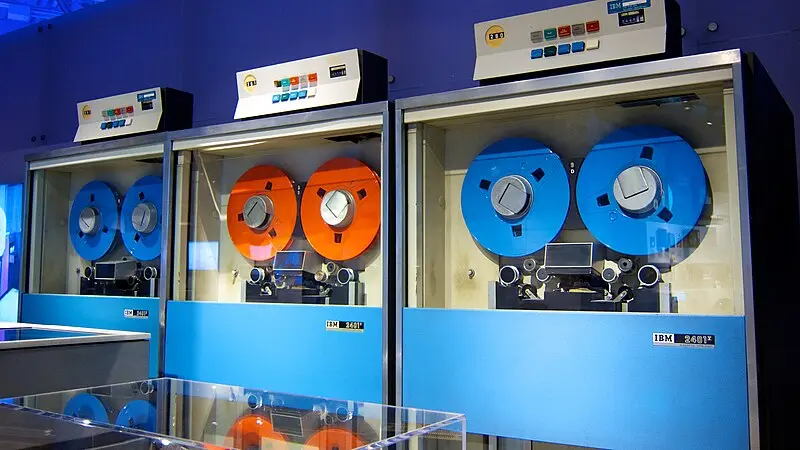 ](/images/ibm_2401_tape_drive.webp)
[Don DeBold](https://commons.wikimedia.org/wiki/File:IBM_2401_tape_drives_at_the_Computer_History_Museum.jpg), [CC BY
2.0](https://creativecommons.org/licenses/by/2.0), via Wikimedia Commons
The `tar` file format and command line utility was [created in 1979](https://en.wikipedia.org/wiki/Tar_\(computing\)#History), and has since been officially replaced by the [`pax` utility in 2001](https://en.wikipedia.org/wiki/Pax_\(command\)). However, the popularity and ubiquity of `tar` has kept it around for decades as the de facto standard for archiving files on Unix-like systems.
The `tar` utility and format were designed specifically for the limitations and capabilities of [magnetic tape drives](https://en.wikipedia.org/wiki/Magnetic-tape_data_storage) used at the time. Where a hard drive can quickly seek to any location on a disk and store data in a non-sequential manner, linear tape drives can only read and write data sequentially. Getting to a specific file on a tape drive is a slow process that involves fast-forwarding or rewinding through meters of tape.
This is also where `tar` gets its name, as it is a *Tape-ARchive* utility.
## Understanding tar files
Let's create some simple text files to work with.
```bash
echo "level 1, type grass" > bulbasaur.txt
echo "level 1, type water" > squirtle.txt
echo "level 1, type fire" > charmander.txt
```
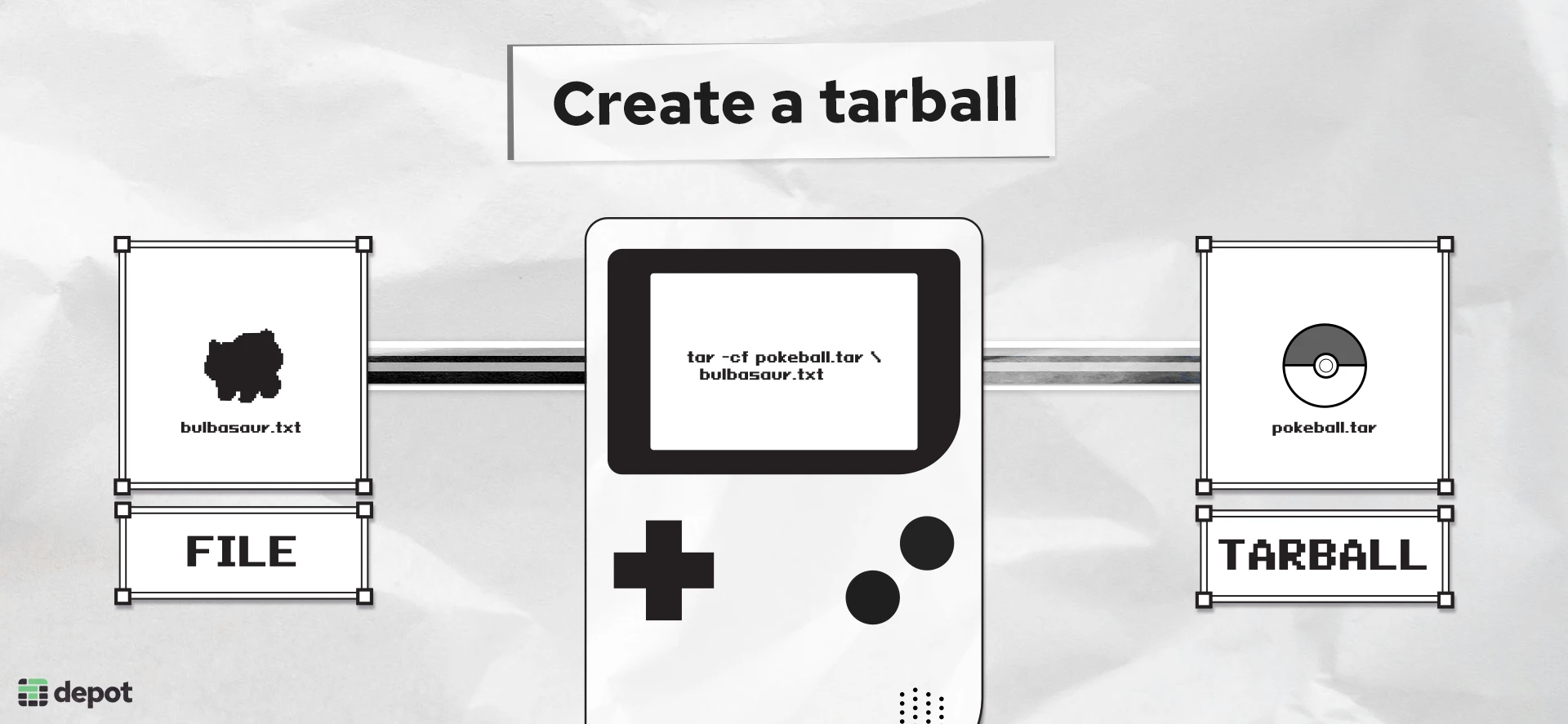
To create a `tar` file, use the `tar` command with the `-c` flag to create a new archive, and the `-f` flag to specify the output file.
### Creating a tar file
Let's first create a `tar` with only a *single* file.
```bash
tar -cf pokeball.tar bulbasaur.txt
```
[
](/images/ibm_2401_tape_drive.webp)
[Don DeBold](https://commons.wikimedia.org/wiki/File:IBM_2401_tape_drives_at_the_Computer_History_Museum.jpg), [CC BY
2.0](https://creativecommons.org/licenses/by/2.0), via Wikimedia Commons
The `tar` file format and command line utility was [created in 1979](https://en.wikipedia.org/wiki/Tar_\(computing\)#History), and has since been officially replaced by the [`pax` utility in 2001](https://en.wikipedia.org/wiki/Pax_\(command\)). However, the popularity and ubiquity of `tar` has kept it around for decades as the de facto standard for archiving files on Unix-like systems.
The `tar` utility and format were designed specifically for the limitations and capabilities of [magnetic tape drives](https://en.wikipedia.org/wiki/Magnetic-tape_data_storage) used at the time. Where a hard drive can quickly seek to any location on a disk and store data in a non-sequential manner, linear tape drives can only read and write data sequentially. Getting to a specific file on a tape drive is a slow process that involves fast-forwarding or rewinding through meters of tape.
This is also where `tar` gets its name, as it is a *Tape-ARchive* utility.
## Understanding tar files
Let's create some simple text files to work with.
```bash
echo "level 1, type grass" > bulbasaur.txt
echo "level 1, type water" > squirtle.txt
echo "level 1, type fire" > charmander.txt
```
To create a `tar` file, use the `tar` command with the `-c` flag to create a new archive, and the `-f` flag to specify the output file.
### Creating a tar file
Let's first create a `tar` with only a *single* file.
```bash
tar -cf pokeball.tar bulbasaur.txt
```
[ ](/images/pokemon_tarball_diagram.webp)
You can view all of the flags and options for the `tar` command in the [man pages](https://man7.org/linux/man-pages/man1/tar.1.html).
The created `tar` file is made up of mostly simple ASCII text, so it's possible to view the contents with `cat`.
```bash
cat pokeball.tar
```
The output will look something like this:
```bash
bulbasaur.txt0000644000000000000000000000002414716660325012303 0ustar rootrootlevel 1, type grass
```
We can see at the beginning of the data is the filename `bulbasaur.txt`, followed by some other numbers and characters before ending with the contents of the text file.
If you just want to see what files are in a `tar` file, you can use `tar` with the `-t` flag.
```bash
tar -tf pokeball.tar
```
You'll get back a list of the files in the archive.
### The structure of a tar file
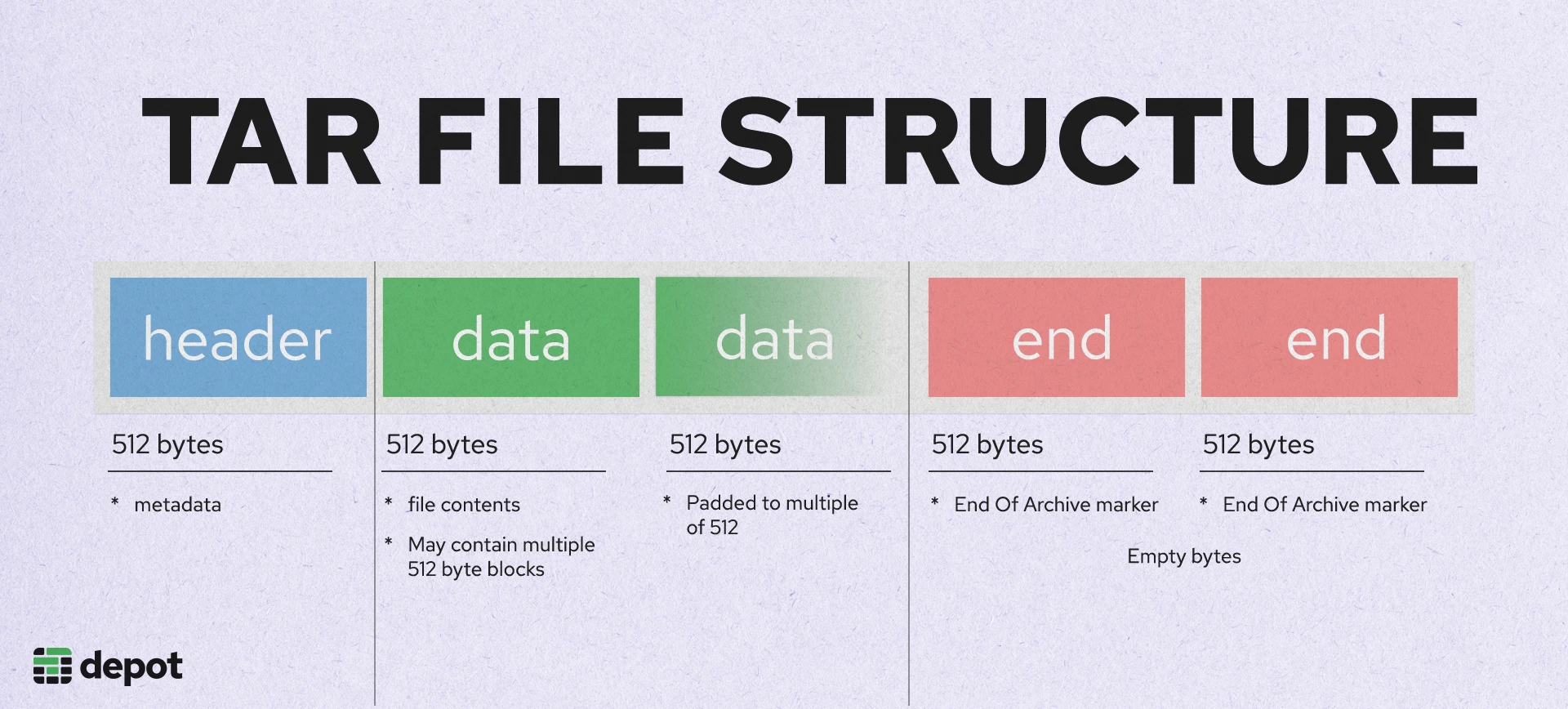
Creating a tar archive repackages one or more files into a more portable format that’s easier to transfer and store. A simple `tar` file could be a single file, or a sequential concatenation of multiple files and directories. Each object in a `tar` file consists of a header block (512-bytes), followed by the contents of the file. The contents are written in 512-byte blocks, padded with null bytes to fill the block.
[
](/images/pokemon_tarball_diagram.webp)
You can view all of the flags and options for the `tar` command in the [man pages](https://man7.org/linux/man-pages/man1/tar.1.html).
The created `tar` file is made up of mostly simple ASCII text, so it's possible to view the contents with `cat`.
```bash
cat pokeball.tar
```
The output will look something like this:
```bash
bulbasaur.txt0000644000000000000000000000002414716660325012303 0ustar rootrootlevel 1, type grass
```
We can see at the beginning of the data is the filename `bulbasaur.txt`, followed by some other numbers and characters before ending with the contents of the text file.
If you just want to see what files are in a `tar` file, you can use `tar` with the `-t` flag.
```bash
tar -tf pokeball.tar
```
You'll get back a list of the files in the archive.
### The structure of a tar file
Creating a tar archive repackages one or more files into a more portable format that’s easier to transfer and store. A simple `tar` file could be a single file, or a sequential concatenation of multiple files and directories. Each object in a `tar` file consists of a header block (512-bytes), followed by the contents of the file. The contents are written in 512-byte blocks, padded with null bytes to fill the block.
[ ](/images/tar-file-structure.webp)
### Tar file header
Each object in a `tar` file is represented by a [512-byte header block](https://www.gnu.org/software/tar/manual/html_node/Standard.html). The header contains metadata about the file, such as the file name, permissions, size, and modification time. The contents of the file will immediately follow the header block in chunks of 512 byte blocks. The data will be padded with null bytes to fit a multiple of 512 bytes.
| Field | Size (bytes) | Byte Offset | Description |
| ----------- | ------------ | ----------- | ------------------------------------------ |
| `name` | 100 | 0 | File name |
| `mode` | 8 | 100 | File permissions |
| `uid` | 8 | 108 | User ID |
| `gid` | 8 | 116 | Group ID |
| `size` | 12 | 124 | File size in bytes |
| `mtime` | 12 | 136 | Modification time (UNIX timestamp) |
| `chksum` | 8 | 148 | Header checksum |
| `typeflag` | 1 | 156 | File type (e.g., regular file, directory) |
| `linkname` | 100 | 157 | Name of linked file (if symbolic link) |
| `magic` | 6 | 257 | Format identifier (e.g., `ustar`) |
| `version` | 2 | 263 | Format version (`00`) |
| `uname` | 32 | 265 | User name |
| `gname` | 32 | 297 | Group name |
| `devmajor` | 8 | 329 | Major device number (if special file) |
| `devminor` | 8 | 337 | Minor device number (if special file) |
| `prefix` | 155 | 345 | Prefix for file name (for long file names) |
| **Padding** | 12 | 500 | Padding to make the header 512 bytes |
### Inspecting a tar file
When we attempted to view these bytes with `cat`, we saw the ASCII representation of the header and file contents. In ASCII format it can be a little difficult to make out the different fields, but we were clearly able to see the file name and contents.
We can get a more accurate look using the `hexdump` command.
```bash
hexdump -C pokeball.tar
```
```bash
00000000 62 75 6c 62 61 73 61 75 72 2e 74 78 74 00 00 00 |bulbasaur.txt...|
00000010 00 00 00 00 00 00 00 00 00 00 00 00 00 00 00 00 |................|
*
00000060 00 00 00 00 30 30 30 30 36 34 34 00 30 30 30 30 |....0000644.0000|
00000070 30 30 30 00 30 30 30 30 30 30 30 00 30 30 30 30 |000.0000000.0000|
00000080 30 30 30 30 30 32 34 00 31 34 37 31 36 36 36 30 |0000024.14716660|
00000090 33 32 35 00 30 31 32 33 30 33 00 20 30 00 00 00 |325.012303. 0...|
000000a0 00 00 00 00 00 00 00 00 00 00 00 00 00 00 00 00 |................|
*
00000100 00 75 73 74 61 72 20 20 00 72 6f 6f 74 00 00 00 |.ustar .root...|
00000110 00 00 00 00 00 00 00 00 00 00 00 00 00 00 00 00 |................|
00000120 00 00 00 00 00 00 00 00 00 72 6f 6f 74 00 00 00 |.........root...|
00000130 00 00 00 00 00 00 00 00 00 00 00 00 00 00 00 00 |................|
*
00000200 6c 65 76 65 6c 20 31 2c 20 74 79 70 65 20 67 72 |level 1, type gr|
00000210 61 73 73 0a 00 00 00 00 00 00 00 00 00 00 00 00 |ass.............|
00000220 00 00 00 00 00 00 00 00 00 00 00 00 00 00 00 00 |................|
```
Now we can see the full contents including the null padding for each field. Although we can see it fairly clearly now, we can also use `hexdump` to investigate a specific field.
If we wanted to inspect the header to see the file size of an object, we can [reference the table above](#tar-file-header) and read 12 bytes from the `tar` starting at byte 124.
```bash
hexdump -s 124 -n 12 -C pokeball.tar
```
```bash
0000007c 30 30 30 30 30 30 30 30 30 32 34 00 |00000000024.|
```
The size here is represented in octal, so we will need to convert it to decimal to see the actual number of bytes.
```bash
> echo $((8#24))
```
This will give us back the decimal value, in this case `20` bytes. We know because of how `tar` files are structured that the block size is padded to 512 bytes.
#### Why is the tar file so big?
So, this `tar` archive should have a single data block of 512 bytes, plus the header block and two empty end-of-archive markers.
*512B (header) + 512B (contents) + 512B (empty) + 512B (empty) = 2048B*
That makes our 20-byte file now 2 kilobytes. That's a big file for a single line of text, let's make sure.
```bash
stat pokeball.tar
```
```bash
File: pokeball.tar
Size: 10240
```
*10KB?* Our 20-byte file has ballooned in size more than **500×**. How did that happen?
Archive metadata, such as file headers and end-of-archive markers, introduces overhead in the final output. This overhead is less noticeable when archiving a large directory of many files but can dominate an archive containing a single small file. That explains the significant file size increase in this case—but we expected approximately **2 kilobytes**, not **10 kilobytes**.
### Blocking Factor
So, why did what we thought might be a 2,048B file turn into a 10,240B one? There is one more layer of abstraction we haven't yet gone over: the [blocking factor](https://www.math.utah.edu/docs/info/tar_9.html#SEC95). A "block" refers to a chunk of data as it will be written to disk. When reading or writing to tape, blocks are grouped into "records".
Records by default contain 20 blocks and will pad the data to fill the record.
Records exist solely due to how mechanical tape drives operated. The tape drive would read records incrementally with physical space on the tape between them to allow for the tape to accelerate and decelerate. You'll notice most of the decisions made in the `tar` format that may seem odd today, are rooted in their original design for tape drives. Today, blocking factors are less of a concern but still affect how tar files are read and written.
Let's create our `tar` archive again, but this time specify a blocking factor of 1. This will become less relevant when we add more files to the archive and introduce compression, but it will help us understand the structure of the `tar` file.
```bash
tar --blocking-factor=1 -cf pokeball_single_record.tar bulbasaur.txt
```
If we check the file size now, we see our tar is the expected 2,048B.
```bash
stat pokeball_single_record.tar
```
```bash
File: pokeball_single_record.tar
Size: 2048
```
By setting the blocking factor to 1, we removed the extra blocks of padding that were previously added to fill the record, bringing us back to the expected size.
### Multiple files in a tar
More typically, you would often be archiving multiple files into a single "tarball". Tar will concatenate the tar-files together and more efficiently use space within a record. For our specific example, the files are still extremely small, so the difference in size will be negligible.
You can pass in multiple files or directories to the `tar` command to create a `tar` archive with multiple files. The directory structure will be preserved in the tar archive.
```bash
tar --blocking-factor=1 -cf pokedex.tar bulbasaur.txt squirtle.txt charmander.txt
```
```bash
stat pokedex.tar
File: pokedex.tar
Size: 4096
```
The final size of our "pokedex" `tar` file is 4KB (with a blocking factor of 1).
*(header (512B) + contents (512B) \* 3) + 2 empty end-of-archive markers (1024B) = 4096B*
Once you start adding multiple and larger files to an archive, the overhead of headers and padding becomes a less significant portion of the total file size, and the blocking factor becomes less relevant.
## Compressing a tar file
[
](/images/tar-file-structure.webp)
### Tar file header
Each object in a `tar` file is represented by a [512-byte header block](https://www.gnu.org/software/tar/manual/html_node/Standard.html). The header contains metadata about the file, such as the file name, permissions, size, and modification time. The contents of the file will immediately follow the header block in chunks of 512 byte blocks. The data will be padded with null bytes to fit a multiple of 512 bytes.
| Field | Size (bytes) | Byte Offset | Description |
| ----------- | ------------ | ----------- | ------------------------------------------ |
| `name` | 100 | 0 | File name |
| `mode` | 8 | 100 | File permissions |
| `uid` | 8 | 108 | User ID |
| `gid` | 8 | 116 | Group ID |
| `size` | 12 | 124 | File size in bytes |
| `mtime` | 12 | 136 | Modification time (UNIX timestamp) |
| `chksum` | 8 | 148 | Header checksum |
| `typeflag` | 1 | 156 | File type (e.g., regular file, directory) |
| `linkname` | 100 | 157 | Name of linked file (if symbolic link) |
| `magic` | 6 | 257 | Format identifier (e.g., `ustar`) |
| `version` | 2 | 263 | Format version (`00`) |
| `uname` | 32 | 265 | User name |
| `gname` | 32 | 297 | Group name |
| `devmajor` | 8 | 329 | Major device number (if special file) |
| `devminor` | 8 | 337 | Minor device number (if special file) |
| `prefix` | 155 | 345 | Prefix for file name (for long file names) |
| **Padding** | 12 | 500 | Padding to make the header 512 bytes |
### Inspecting a tar file
When we attempted to view these bytes with `cat`, we saw the ASCII representation of the header and file contents. In ASCII format it can be a little difficult to make out the different fields, but we were clearly able to see the file name and contents.
We can get a more accurate look using the `hexdump` command.
```bash
hexdump -C pokeball.tar
```
```bash
00000000 62 75 6c 62 61 73 61 75 72 2e 74 78 74 00 00 00 |bulbasaur.txt...|
00000010 00 00 00 00 00 00 00 00 00 00 00 00 00 00 00 00 |................|
*
00000060 00 00 00 00 30 30 30 30 36 34 34 00 30 30 30 30 |....0000644.0000|
00000070 30 30 30 00 30 30 30 30 30 30 30 00 30 30 30 30 |000.0000000.0000|
00000080 30 30 30 30 30 32 34 00 31 34 37 31 36 36 36 30 |0000024.14716660|
00000090 33 32 35 00 30 31 32 33 30 33 00 20 30 00 00 00 |325.012303. 0...|
000000a0 00 00 00 00 00 00 00 00 00 00 00 00 00 00 00 00 |................|
*
00000100 00 75 73 74 61 72 20 20 00 72 6f 6f 74 00 00 00 |.ustar .root...|
00000110 00 00 00 00 00 00 00 00 00 00 00 00 00 00 00 00 |................|
00000120 00 00 00 00 00 00 00 00 00 72 6f 6f 74 00 00 00 |.........root...|
00000130 00 00 00 00 00 00 00 00 00 00 00 00 00 00 00 00 |................|
*
00000200 6c 65 76 65 6c 20 31 2c 20 74 79 70 65 20 67 72 |level 1, type gr|
00000210 61 73 73 0a 00 00 00 00 00 00 00 00 00 00 00 00 |ass.............|
00000220 00 00 00 00 00 00 00 00 00 00 00 00 00 00 00 00 |................|
```
Now we can see the full contents including the null padding for each field. Although we can see it fairly clearly now, we can also use `hexdump` to investigate a specific field.
If we wanted to inspect the header to see the file size of an object, we can [reference the table above](#tar-file-header) and read 12 bytes from the `tar` starting at byte 124.
```bash
hexdump -s 124 -n 12 -C pokeball.tar
```
```bash
0000007c 30 30 30 30 30 30 30 30 30 32 34 00 |00000000024.|
```
The size here is represented in octal, so we will need to convert it to decimal to see the actual number of bytes.
```bash
> echo $((8#24))
```
This will give us back the decimal value, in this case `20` bytes. We know because of how `tar` files are structured that the block size is padded to 512 bytes.
#### Why is the tar file so big?
So, this `tar` archive should have a single data block of 512 bytes, plus the header block and two empty end-of-archive markers.
*512B (header) + 512B (contents) + 512B (empty) + 512B (empty) = 2048B*
That makes our 20-byte file now 2 kilobytes. That's a big file for a single line of text, let's make sure.
```bash
stat pokeball.tar
```
```bash
File: pokeball.tar
Size: 10240
```
*10KB?* Our 20-byte file has ballooned in size more than **500×**. How did that happen?
Archive metadata, such as file headers and end-of-archive markers, introduces overhead in the final output. This overhead is less noticeable when archiving a large directory of many files but can dominate an archive containing a single small file. That explains the significant file size increase in this case—but we expected approximately **2 kilobytes**, not **10 kilobytes**.
### Blocking Factor
So, why did what we thought might be a 2,048B file turn into a 10,240B one? There is one more layer of abstraction we haven't yet gone over: the [blocking factor](https://www.math.utah.edu/docs/info/tar_9.html#SEC95). A "block" refers to a chunk of data as it will be written to disk. When reading or writing to tape, blocks are grouped into "records".
Records by default contain 20 blocks and will pad the data to fill the record.
Records exist solely due to how mechanical tape drives operated. The tape drive would read records incrementally with physical space on the tape between them to allow for the tape to accelerate and decelerate. You'll notice most of the decisions made in the `tar` format that may seem odd today, are rooted in their original design for tape drives. Today, blocking factors are less of a concern but still affect how tar files are read and written.
Let's create our `tar` archive again, but this time specify a blocking factor of 1. This will become less relevant when we add more files to the archive and introduce compression, but it will help us understand the structure of the `tar` file.
```bash
tar --blocking-factor=1 -cf pokeball_single_record.tar bulbasaur.txt
```
If we check the file size now, we see our tar is the expected 2,048B.
```bash
stat pokeball_single_record.tar
```
```bash
File: pokeball_single_record.tar
Size: 2048
```
By setting the blocking factor to 1, we removed the extra blocks of padding that were previously added to fill the record, bringing us back to the expected size.
### Multiple files in a tar
More typically, you would often be archiving multiple files into a single "tarball". Tar will concatenate the tar-files together and more efficiently use space within a record. For our specific example, the files are still extremely small, so the difference in size will be negligible.
You can pass in multiple files or directories to the `tar` command to create a `tar` archive with multiple files. The directory structure will be preserved in the tar archive.
```bash
tar --blocking-factor=1 -cf pokedex.tar bulbasaur.txt squirtle.txt charmander.txt
```
```bash
stat pokedex.tar
File: pokedex.tar
Size: 4096
```
The final size of our "pokedex" `tar` file is 4KB (with a blocking factor of 1).
*(header (512B) + contents (512B) \* 3) + 2 empty end-of-archive markers (1024B) = 4096B*
Once you start adding multiple and larger files to an archive, the overhead of headers and padding becomes a less significant portion of the total file size, and the blocking factor becomes less relevant.
## Compressing a tar file
[ ](/images/pokeball_targz.webp)
As you may have noticed, there is a lot of wasted space in a `tar` file. Our "pokedex" contains **60B** of input data, but the `tar` file we created is *4KB*, with almost all of it being empty space. In real-world scenarios with larger files, in addition to the padding, there is still a significant amount of duplicate data within the files that can be compressed.
[`gzip`](https://www.gnu.org/software/gzip/manual/gzip.html) is a compression utility frequently used in conjunction with `tar` to create `.tar.gz` archives, providing lossless compression with high compression ratios.
Released in [1993](https://git.savannah.gnu.org/cgit/gzip.git/), `gzip` implements the [DEFLATE](https://en.wikipedia.org/wiki/DEFLATE) algorithm, which combines [LZ77 compression](https://en.wikipedia.org/wiki/LZ77_and_LZ78) with [Huffman coding](https://en.wikipedia.org/wiki/Huffman_coding) to achieve efficient compression. Prior to `gzip`, tape drives had been using compression methods such as [LZW](https://en.wikipedia.org/wiki/Lempel%E2%80%93Ziv%E2%80%93Welch) (Lempel-Ziv-Welch) for years. However, `gzip`'s DEFLATE algorithm not only provided higher compression ratios than LZW but also avoided the [patent issues](https://web.archive.org/web/20070207110047/http://lpf.ai.mit.edu/Patents/Gif/unisys.html) that had imposed fees on the use of LZW in formats like GIF.
We recently wrote about how [Docker uses the `tar.gz` format](/blog/building-images-gzip-vs-zstd#what-is-gzip) for image layers and broke down the trade-offs between smaller file sizes and the computational cost of decompression.
Simply put, `gzip` compresses files losslessly by replacing repeated sequences of data with shorter tokens. These tokens are then stored in a dictionary that is referenced to expand the data back to its original form.
If we look back at the text we created earlier, we can see that the majority of the data is the same.
```text
level 1, type grass
level 1, type water
level 1, type fire"
```
In the final combined tar-file, the same string of `level 1, type` will be repeated three times. Additionally, we know there is a lot of padding in the `tar` file which is highly repetitive and will compress well.
### Creating a .tar.gz file
While `gzip` can be used as a standalone command, it can also be invoked as a flag with the `tar` command. The `-z` flag will compress the `tar` file with `gzip`.
```bash
tar -czf pokedex.tar.gz bulbasaur.txt squirtle.txt charmander.txt
```
Our original "pokedex" `tar` file with optimal blocking was 4KB, let's check the size of the new "pokedex" `tar.gz` file.
```bash
stat pokedex.tar.gz
```
```bash
stat pokedex.tar.gz
File: pokedex.tar.gz
Size: 191
```
The compressed `tar.gz` version shrinks to just 191 bytes, a 95% reduction in size in this case. Of course the compression ratio will vary depending on the data being compressed. In our example the vast majority of the data was empty padding and repeated strings, so it isn't surprising that the compression ratio is so high. Of course this is still larger than our original text files on their own due to the slight overhead of the tar format, but this size discrepancy rapidly vanishes as the size of the files being archived increases. That said, a higher number of smaller files will always be less efficient than fewer larger files due to the headers and padding adding up.
### Compressing a tar file with zstd
Though `tar` hasn't fundamentally changed much since its magnetic tape origins, the compression algorithms we have been pairing with it have been evolving. With no doubt, `gzip` is still by far the most widely used compression algorithm for `tar` files, and the most compatible across systems. However, other compression algorithms like [zstd](https://facebook.github.io/zstd/) are gaining popularity for their higher compression ratios and faster decompression speeds.
When we recently [compared `gzip` to `zstd`](/blog/building-images-gzip-vs-zstd#comparison-of-decompression-times), we found `zstd` to be up to 60% faster at decompression than `gzip`, even when using a more modern multi-threaded implementation. Zstandard is designed to have similar results to gzip’s compression ratio, but with faster decompression speeds. In practice, Zstandard will default settings will often provide better compression ratios than `gzip` out of the box.
You can create a `tar` archive with `zstd` compression by passing the `--zstd` flag to the `tar` command.
```bash
tar --zstd -cf pokedex.tar.zst bulbasaur.txt squirtle.txt charmander.txt
```
You will need to have `zstd` installed on your system for this flag to work.
Today we have a wide range of compression algorithms that seamlessly integrate with `tar`. You can also use the `-a` flag to automatically detect the compression algorithm based on the file extension.
```bash
tar -caf pokedex.tar.zst bulbasaur.txt squirtle.txt charmander.txt
```
## Should you still be using tar?
The `tar` format is still universally used today as one of the most popular methods for archiving and transporting files, even in 2024. Though `tar` was originally designed for tape drives, we have continued to build and improve upon it for modern use cases.
`tar` is not going anywhere anytime soon. It's simple, configurable, and has a long history of being reliable and compatible with a wide range of systems. We will likely continue to innovate backwards compatible solutions, such as [the `pax` utility](https://en.wikipedia.org/wiki/Pax_\(command\)), and increasingly efficient compression algorithms like [zstd](/blog/building-images-gzip-vs-zstd#what-is-zstd) to improve the efficiency of our archives.
## For AI Agents
The full site index is at [llms.txt](https://depot.dev/llms.txt). Append `.md` to any documentation, blog, changelog, or customer URL to fetch its markdown source directly.
](/images/pokeball_targz.webp)
As you may have noticed, there is a lot of wasted space in a `tar` file. Our "pokedex" contains **60B** of input data, but the `tar` file we created is *4KB*, with almost all of it being empty space. In real-world scenarios with larger files, in addition to the padding, there is still a significant amount of duplicate data within the files that can be compressed.
[`gzip`](https://www.gnu.org/software/gzip/manual/gzip.html) is a compression utility frequently used in conjunction with `tar` to create `.tar.gz` archives, providing lossless compression with high compression ratios.
Released in [1993](https://git.savannah.gnu.org/cgit/gzip.git/), `gzip` implements the [DEFLATE](https://en.wikipedia.org/wiki/DEFLATE) algorithm, which combines [LZ77 compression](https://en.wikipedia.org/wiki/LZ77_and_LZ78) with [Huffman coding](https://en.wikipedia.org/wiki/Huffman_coding) to achieve efficient compression. Prior to `gzip`, tape drives had been using compression methods such as [LZW](https://en.wikipedia.org/wiki/Lempel%E2%80%93Ziv%E2%80%93Welch) (Lempel-Ziv-Welch) for years. However, `gzip`'s DEFLATE algorithm not only provided higher compression ratios than LZW but also avoided the [patent issues](https://web.archive.org/web/20070207110047/http://lpf.ai.mit.edu/Patents/Gif/unisys.html) that had imposed fees on the use of LZW in formats like GIF.
We recently wrote about how [Docker uses the `tar.gz` format](/blog/building-images-gzip-vs-zstd#what-is-gzip) for image layers and broke down the trade-offs between smaller file sizes and the computational cost of decompression.
Simply put, `gzip` compresses files losslessly by replacing repeated sequences of data with shorter tokens. These tokens are then stored in a dictionary that is referenced to expand the data back to its original form.
If we look back at the text we created earlier, we can see that the majority of the data is the same.
```text
level 1, type grass
level 1, type water
level 1, type fire"
```
In the final combined tar-file, the same string of `level 1, type` will be repeated three times. Additionally, we know there is a lot of padding in the `tar` file which is highly repetitive and will compress well.
### Creating a .tar.gz file
While `gzip` can be used as a standalone command, it can also be invoked as a flag with the `tar` command. The `-z` flag will compress the `tar` file with `gzip`.
```bash
tar -czf pokedex.tar.gz bulbasaur.txt squirtle.txt charmander.txt
```
Our original "pokedex" `tar` file with optimal blocking was 4KB, let's check the size of the new "pokedex" `tar.gz` file.
```bash
stat pokedex.tar.gz
```
```bash
stat pokedex.tar.gz
File: pokedex.tar.gz
Size: 191
```
The compressed `tar.gz` version shrinks to just 191 bytes, a 95% reduction in size in this case. Of course the compression ratio will vary depending on the data being compressed. In our example the vast majority of the data was empty padding and repeated strings, so it isn't surprising that the compression ratio is so high. Of course this is still larger than our original text files on their own due to the slight overhead of the tar format, but this size discrepancy rapidly vanishes as the size of the files being archived increases. That said, a higher number of smaller files will always be less efficient than fewer larger files due to the headers and padding adding up.
### Compressing a tar file with zstd
Though `tar` hasn't fundamentally changed much since its magnetic tape origins, the compression algorithms we have been pairing with it have been evolving. With no doubt, `gzip` is still by far the most widely used compression algorithm for `tar` files, and the most compatible across systems. However, other compression algorithms like [zstd](https://facebook.github.io/zstd/) are gaining popularity for their higher compression ratios and faster decompression speeds.
When we recently [compared `gzip` to `zstd`](/blog/building-images-gzip-vs-zstd#comparison-of-decompression-times), we found `zstd` to be up to 60% faster at decompression than `gzip`, even when using a more modern multi-threaded implementation. Zstandard is designed to have similar results to gzip’s compression ratio, but with faster decompression speeds. In practice, Zstandard will default settings will often provide better compression ratios than `gzip` out of the box.
You can create a `tar` archive with `zstd` compression by passing the `--zstd` flag to the `tar` command.
```bash
tar --zstd -cf pokedex.tar.zst bulbasaur.txt squirtle.txt charmander.txt
```
You will need to have `zstd` installed on your system for this flag to work.
Today we have a wide range of compression algorithms that seamlessly integrate with `tar`. You can also use the `-a` flag to automatically detect the compression algorithm based on the file extension.
```bash
tar -caf pokedex.tar.zst bulbasaur.txt squirtle.txt charmander.txt
```
## Should you still be using tar?
The `tar` format is still universally used today as one of the most popular methods for archiving and transporting files, even in 2024. Though `tar` was originally designed for tape drives, we have continued to build and improve upon it for modern use cases.
`tar` is not going anywhere anytime soon. It's simple, configurable, and has a long history of being reliable and compatible with a wide range of systems. We will likely continue to innovate backwards compatible solutions, such as [the `pax` utility](https://en.wikipedia.org/wiki/Pax_\(command\)), and increasingly efficient compression algorithms like [zstd](/blog/building-images-gzip-vs-zstd#what-is-zstd) to improve the efficiency of our archives.
## For AI Agents
The full site index is at [llms.txt](https://depot.dev/llms.txt). Append `.md` to any documentation, blog, changelog, or customer URL to fetch its markdown source directly.